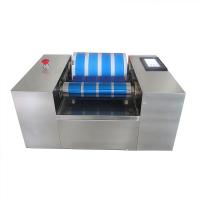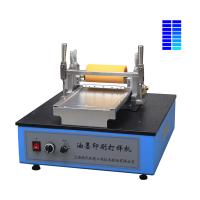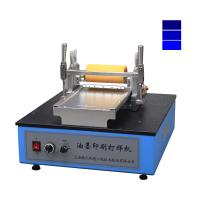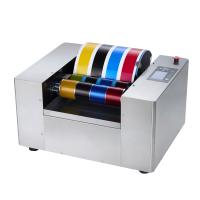
Operation summary:
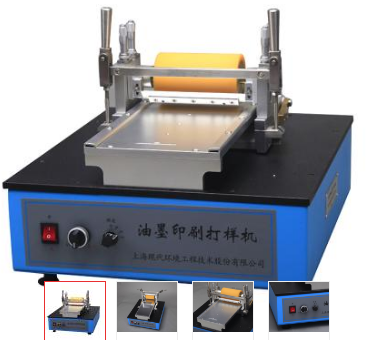
1. Put the proofing machine on a stable and flat test bench, with the switch panel in front.
2. Install the gravure proofing plate: place the side with standard printing on the far end, and align the non-printing side with the front of the proofing plate installation table, and properly tighten the compression screws.
3. Loosen the clamping handle and lift up the proofing mobile frame. Install the squeegee on the squeegee holder, and fasten the screw after leaning against the positioning pin (the squeegee is attached in the instruction manual packaging bag). Tilt the scraper frame back about 45 degrees, and properly tighten the compression screw of the scraper frame.
4. Push the proofing mobile frame back to the end. Adjust the scraper adjuster and rubber roller adjuster upward properly (loosen the locking ring at the bottom before adjustment), and confirm that the scraper and rubber roller will not contact the proofing plate when the proofing mobile frame is lowered and the clamping handle is locked.
5. Put down the proofing mobile frame and lock the clamping handle. Adjust the rubber roller adjuster downwards (loosen the locking ring at the bottom before adjustment, and then lock it after adjustment), so that there is an appropriate pressure between the rubber roller and the proofing plate (just press the sample so that it will not be easily pulled out). Usually at the beginning, touch the rubber roller parallel to the proofing plate and then increase the scale of the spiral micrometer clockwise by about 1~2 circles. After the trial printing, make appropriate adjustments according to the leveling situation.
6. Adjust the scraper adjuster downward (loosen the locking ring at the bottom before adjustment, and then lock it after adjustment), so that there is a suitable pressure between the scraper and the proofing plate (can scrape off the remaining ink in the non-concave part can be). Usually, at the beginning, touch the ink scraper in parallel with the proofing plate, and then increase the scale of the spiral micrometer clockwise by about 1 to 2 circles. After the trial printing, make appropriate adjustments depending on the ink scraping situation.
7. Loosen the clamping handle, and confirm that the proofing mobile frame has moved back enough, and the "proofing/manual/reset" knob is in the "manual" position (middle position). Connect the power and turn on the power switch. First select the "1" gear speed (20 m/min), turn the "proofing/manual/reset" knob to the "proofing" gear, and confirm that the proofing mobile frame slides smoothly. After reset, select the appropriate proofing speed (usually you can choose "3" gear at the beginning, 40m/min), if the leveling is not satisfactory after trial printing, you can properly reduce the proofing speed.
8. Proofing operation: Paste a flexible substrate sample of appropriate width and length (plastic film, cardboard, etc., 120×240 mm size is recommended) on the rubber roller with transparent tape (just paste the end that enters in the direction). Turn the sticky end to the proper starting position (approximately near the scraper holder), lock the clamping handle, and place an appropriate amount of ink on the proof plate next to the scraper (at the start of the pocket, to approach the pocket width and not exceed as appropriate). Turn the "proofing/manual/reset" knob to the "proofing" position, and the proofing mobile frame will quickly complete the proofing movement from back to front at the selected speed.
9. Loosen the clamping handle and remove the sample sheet. Lift the proofing mobile frame and select the "reset" file to make it go back to the end (the reset speed has been preset at the factory). Use a soft cloth with a solvent to quickly wipe off the residual ink on the scraper, proofing plate and rubber roller for the next proofing operation. During the scrubbing process, the "proofing/manual/reset" knob can be placed in the "manual" position (middle position), so that the proofing mobile frame can be moved back and forth at will, which is convenient for scrubbing operations. After scrubbing, reset the proofing mobile frame.
10. Observe the printing effect of the proof sheet, and make appropriate adjustments to the ink or instrument depending on the proofing situation.
Precautions:
1. This machine is used for the test process of chemical raw materials. Users should establish appropriate safety and health protection measures and determine rules and regulations according to relevant safety regulations before use. Safety issues related to contact with chemical raw materials should be established by the user and are not within the scope of this manual.
2. If there is a protective paper on the proofing plate when using it for the first time, please remove it.
3. When moving the proofing mobile frame forward with no load, please do not select the "4" gear (45 m/s) for the proofing speed.
4. Lubricate the sliding guide rail at the lower part of the proofing plate mounting table in due course.
5. Every time a proofing operation is completed, it is necessary to promptly and effectively clean the residual ink on the proofing plate to avoid "paste board". Before proofing, confirm that there is no residue in the concave part.
6. The proofing plate, scraper and rubber roller play an important role in the proofing effect. During use, bumps and scratches should be avoided, and cleaning and maintenance should be done in a timely manner.
7. If you want to manually move the proofing mobile rack during use, please set the "proofing/manual/reset" knob to the center. If the "proofing" file is selected, the proofing mobile frame will move forward rapidly at the selected speed. If the "reset" file is selected, the proofing mobile frame will fall backward at a preset speed. The retraction speed has been preset before leaving the factory and usually does not need to be adjusted (it can be adjusted through the small opening at the bottom of the machine).