Select Gage Information from the Settings menu. Select Next on each screen until the following Package List appears...
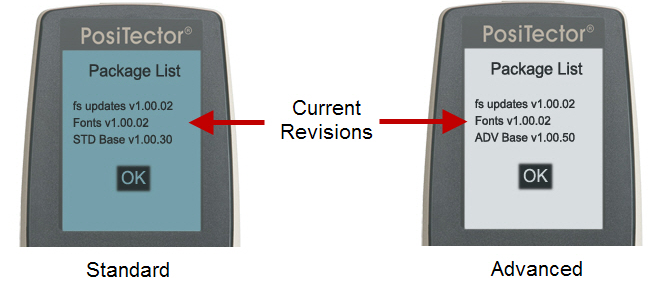
See the software release notes for current version and release information
Release Notes
Note: Make sure to back up the stored measurements to a PC or PosiSoft.net. When the update is complete, the Gage will reset and all readings in memory will be deleted.
PosiTector Advanced users connected via WiFi can skip to step 3 .
Step 1: Make sure PosiSoft Desktop (4.1.0 or later) is installed and running on your PC. If you have not installed PosiSoft Desktop, you can download it here . PosiSoft Desktop is not required for updating via WiFi (PosiTector Advanced models only).
Step 2: Connect PosiTector to PC using the included USB cable.
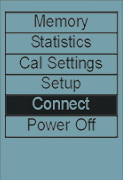
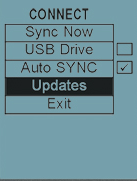
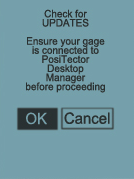
Step 3: Select Updates from the Gage's Connect menu as shown below
|
|
|
| a) Select the Connect menu option | b) Next, select Update | c) Select OK to check for new updates |
|
| |
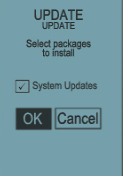
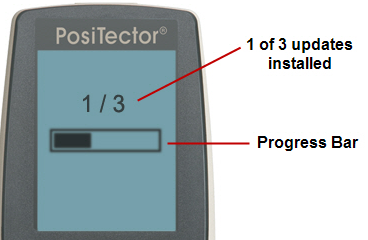
| d) Install all available updates is selected by default. Select OK to proceed with the update | e) The update process will start and a progress bar will be displayed (shown above). The Gage will power off when the update is complete. After turning on the power, the gage may reset to complete the installation. Do not unplug the Gage during the update operation. | |
When complete, the PosiTector software version should match the new software package in the Software Revision Notes below.