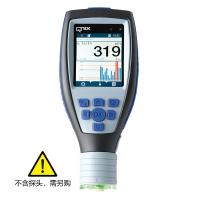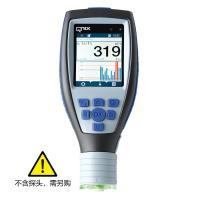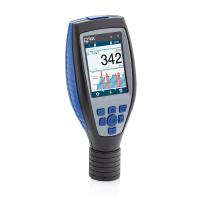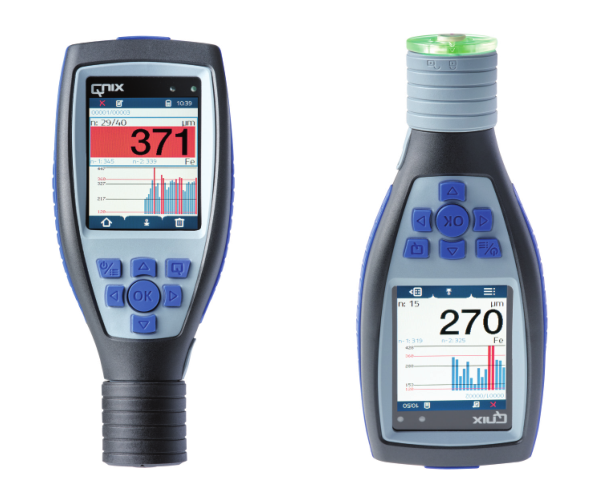
1. How does the focus frame on the display work and what information is available on it?
The focus frame allows you to quickly navigate to important information during the measurement process.
In the lower position, you can switch between graphical and numerically based statistics display.
In the middle position (range of measured values), you can scroll through temporarily saved individual measured values of the current measurement series or the active area. Individual (eg incorrect) measured values can be deleted directly.
In the upper position, change the various areas of the job according to the device version. Matched to the corresponding area, the lower area shows the corresponding statistics, and the middle area shows the corresponding measurement value.
2. How to browse the menu of QNix 9500 handheld Thickness Gauge?
You can intuitively navigate your handheld. The menu displays 4 tabs with submenu items. The video shows how easy it is to navigate the menus.
Tip: When you switch between multiple tabs, the handheld remembers where you are in the submenu of the corresponding tab. These abbreviations make setup faster.
3. How to set the limit value of the coating Thickness Gauge?
1) Open the menu on the handheld
2) Switch to the red tab for extremes and averages
3) Select the restriction type:
● "No limits" (limit values and mean values are deactivated)
● "Simple limit values" (maximum value, minimum value, average value, autorange)
● "Personal" (e.g. simple limits + max and min for each point)
● The limit value complies with ISO 19840, IMO PSPC or SSPC PA2 level 1-5 (Pro+)
4) For example, activate "Minimum" and set the value of the minimum allowable layer thickness
4. How to create a task for the pro+ version Thickness Gauge?
1) Open the menu on the handheld
2) Select "New Task "
3) Select "New Empty Task " to create a new task
TIP: Use the QN9 software to create task templates and save them on the rubric. These job templates predefine your areas and provide tasks and the names and constraints of each area in the task .
5. How to create a survey area in a task (Pro+)?
1) Open the menu on the tablet
2) Go to the blue tab of the task
3) Select task
4) Select "New Region"
5) The zone is created immediately
6) Select "Activate Zone" to save readings in that zone, or go back up one level to create more zones
6. How to adjust?
1) Open the menu on the tablet
2) Change to orange tab for adjustments
3) Open "Settings" and select Adjustment Mode in the first menu item
○ "Zeroing" (normalizes the gauge of the main board to zero)
○ "1-point adjustment" (adjustment by calibration foil within the range of coating thickness to be measured)
○ "2-point adjustment" (adjustment by two calibration foils within the range of coating thickness to be measured)
○ "Individually" (adjustment by any number of calibration foils (1-5) within the range of coating thicknesses to be measured)
○ Adjustment according to ISO 19840 or SSPC PA2 (Advanced+)
4) Go back to the previous level, where you can customize the adjustment (averaging when recording adjustment points or offsetting in case of zero point adjustment to compensate for rough surfaces). Tuning is nicely pre-configured.
5) Go back one level up and use "Start" to run the tweak
7. What is the difference between task (Pro+ version) and survey area?
Zones are saved on gauges and contain files with readings and limit settings.
Tasks can be described as folders of storage areas.
Tasks organize your measurements such as:
● Serial testing in production
○ One task per order
○ One item per inspection
● Shipbuilding
○ One task per order
○ One item per inspection
● Multilayer system
○ One task per object
○ One zone per floor
8. How to change the function of assignable Q button?
1) Open the menu on the handheld
2) Change to green tab to set
3) Select "System"
4) Select "Softkey Settings"
5) Then select your preferred Q button settings