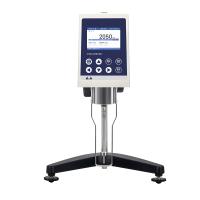
1. Instrument composition
Basic introduction: SMART (L) viscometer is equipped with 4 spindles as standard, and SMART (R) and SMART (H) viscometers are equipped with 6 spindles as standard. Main unit, leveling knob, bracket, rotor bracket, rotor protection legs, PT100 temperature probe, U disk (including instructions).
2. Button description
On: start/pause key
Quit: return to the previous page, stop measurement button
Enter: confirmation key, enter key
TAB: tab key, you can move the cursor to the option to be set
∆: Go to the previous option; press this key after selecting a field to increase the number
∇ : Go to the next option; press this key after selecting a field to decrease the number
3. Installation instructions
1. Install the instrument and adjust the leveling knob so that the air bubble in the level is in the middle.
2. Remove the rotor protective cover on the host, turn on the power at the back of the host, confirm that the rotor is not installed, click Enter to start the power-on self-test, after the self-test is completed, enter the main page for a total of five

3. The first item on the main page (Instrument Setup) (basic settings), click Enter to enter, and five options appear:

The first one is Language language, you can choose the appropriate language according to your own needs, such as Chinese Chinese.
The second item is the units unit, you can select the unit of viscosity (cp or mpas, 1cp=mpas) and the unit of temperature (°C or oF) through the up and down arrows.
The third item is the density d. When using this instrument to measure the dynamic viscosity, the density only needs to be set to the default value of 1. We usually buy this equipment to measure the dynamic viscosity, so the default value here is 1, and there is no need to set it. If the density value is entered, the kinematic viscosity is measured in mm 2 /s or cSt (equivalent to the result measured by the capillary viscometer method). Note: dynamic viscosity = kinematic viscosity * density.
The fourth item is Calibration calibration, click Reset (restore factory settings), Viscosity (user calibrates viscosity) and Temperature (calibrate temperature). Note that it is not easy to calibrate here, and it needs to be operated strictly under the guidance of an engineer.
The fifth item Time settings date & time; just set Beijing time.
Here is a brief introduction to viscosity calibration: select Viscosity viscosity option, click Enter, enter the viscometer calibration page, select the rotor (such as L3), select the corresponding standard silicone oil of RT1000, and the specific value entered is the one displayed on the standard silicone oil manual The viscosity value at a specific temperature, for example, 20 degrees is 1144mpas, input 1144, connect the Water Bath temperature control to 20 degrees, press Enter to install the L3 rotor, set the waiting time Delay time, to ensure that the standard silicone oil is in a stable state, Click the On button, the viscometer starts to measure, and the measurement is completed in about fifteen minutes. If the obtained error value is within 2%, click Enter, and the instrument will save the result and automatically correct the deviation in the future measurement process; if the error is greater than 2%, It needs to be returned to the factory for repair.
The temperature calibration steps are similar, you can refer to the English manual, so I won’t go into details here
4. The second item of the main page is Measurement Configuration. This step is to realize the measurement of the sample by the viscometer.
Click Enter to enter the following page:

SP: rotor model RPM: rotational speed d: sample density
Max: the maximum viscosity value measured under this combination of spindle and speed
Use the ∆ and ∇ keys to select the corresponding rotor or set the rotational speed, and use the TAB key to switch the cursor between rotor SP, rotational speed RPM and density d. Density d is generally set as 1, and the measured value is dynamic viscosity.
After setting the rotor and speed, click On to start measurement (click On again to pause), click Quit to end the measurement process. During the measurement, the screen will display the following content: Here V:30.1cp is the measurement result, 50.1% is the torque, and T is the temperature.

Note: During the measurement process, the measured value of the torque between 15% and 95% is valid. If it is lower than 15% or higher than 95%, the measurement error of the measured viscosity value will be too large. It is recommended not to adopt it, and the instrument will also sound an alarm. . (Some people say that the torque range is: 20%-80%, which is more conservative and not contradictory)
If you use a small-capacity adapter or an ultra-low viscosity adapter, click Enter during the measurement process, and the page will also display the shear stress and shear rate values, and the display content is as follows:

Press the Enter key to return to the previous screen showing the measured viscosity value
5. The third Test Profiles test file on the main page, SMART viscometer can edit 9 programs and store them for easy recall at any time.

Select profiles选择测试程序:选择M1-M9中某个编辑好的程序,点击Enter,便会显示设置好的转子和转速,直接点击On就可以测量,不用再在主页第二步中进行设置。如果M1-M9没有编辑程序,选择的时候将会显示为空。

Edit Profile 编辑测量程序:编辑测试程序并存储在 M1-M9 中。步骤如下:选择要编辑的程序比如 M1,点击 Enter 进入以下页面:

首先选择数据记录,点击 enter 进入:

点击 Enter,状态变为 开启。光标移动到开始栏,点击 Enter 进入,可以设置数据开始记录的时间;进而设置结束时间。增量代表多长时间取一个点,比如记录 1 分钟,增量为 2秒,表示记录过程最多记录 30 个点;如果增量为 5 秒,那最多记录 12 个点。
设置好以上三项点击 quit,退回上一层,选择“定扭矩测量和定时间测量”,点击 Enter:

定扭矩测量,点击 Enter,关闭调整为开启,可以在第二行设置选定的扭矩并保存,在测量时当扭矩达到设定的值时,测量便会停止。
定时间测量,关闭调整为开启,再点击 enter,进行时间设置。比如设定时间为 2min时,当测量进行到 2 分钟时,测量便会停止。
6. 主页第四项 Programming , 程序 。 点击 Enter 进入:

上一步的定扭矩测量和定时间测量是针对 M1 程序的定扭矩和定时间。此处的定扭矩测量和定时间测量是针对整个粘度计进行设置的,此处设置好之后,在第二项测量中便会按照设置的定扭矩测量或定时间测量程序进行。
7. 主页第五项 选项。点击 Enter 进入以下页面:

(1)首先选择数据记录,点击 enter 进入:

点击 Enter,状态变为 开启。光标移动到开始栏,点击 Enter 进入,可以设置数据开始记录的时间;进而设置结束时间。前文有介绍,不在赘述。上文是针对编程程序 M1 的数据记录,此处设置是针对整个粘度计的数据记录。
(2) External link: Click Enter to enter: the first item connects to FDB data analysis software, which is optional and needs to be purchased separately. The second item is the U disk, select the outermost USB interface on the rear of the instrument and insert it into the U disk, click Enter, the data recorded in the above steps can be copied to the U disk, and the excel file will be automatically generated. If no data record is set, no data will be copied out.

(3) Manufacturer information, click Enter to enter and view.