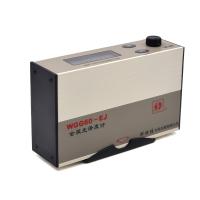
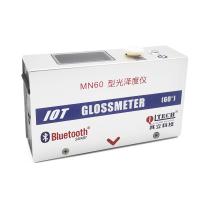
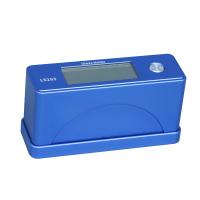
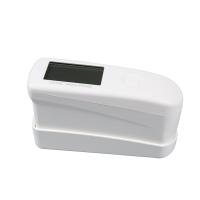
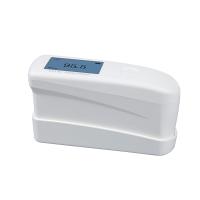
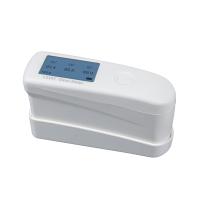
1. Power on/off
Power on: Short press the button on the instrument to power on.
Shutdown: Long press the button on the instrument to shut down or automatically shut down without any operation for 3 minutes.
2. Instrument Setup
In the off state, press and hold the instrument button for 3S to enter the parameter setting mode:
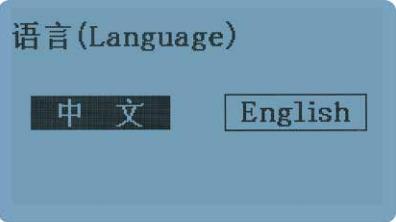
language settings
Short press the button to select Chinese or English, long press the button for 3 seconds to complete the setting , and enter the next setting item.
mode selection
Short press the button to select normal mode or QC mode, long press the button for 3 seconds to complete the setting, exit the setting and enter the calibration interface.

3. Equipment Calibration
The instrument is placed on the standard plate, and it will enter the calibration interface when it is turned on. The user can perform the calibration operation according to the calibration prompt, and will enter the measurement interface after the calibration is passed. If the instrument is not placed on the standard plate and turned on, it will skip the calibration and directly enter the measurement interface.
4. Measure
normal mode
Remove the base, place the measuring port of the instrument on the surface of the measured object, and the instrument will display the measured value there in real time. Short press the button, the "HOLD" sign will be displayed in the lower left corner , and the measurement data will be held on the LCD. If you need to measure again, press the button to cancel the "HOLD" state and return to the "measurement" state.
QC mode
If the instrument is set to QC mode, after the calibration of the instrument is completed, remove the base, place the measuring port of the instrument on the surface of the object to be measured, and press the button to measure. After the measurement, the measured value will be judged whether it is qualified or not. The range of the upper and lower limits must be set through the PC software, and the specific operation can refer to the "Gloss Meter Software Operation Manual "